Upgrading to MiniSeq Control Software v2
04/07/2022
What is the upgrade?
The MiniSeq system upgrade is accomplished by updating to MiniSeq Control (MNCS) v2. MNCS v2 provides several enhancements:
- Changes the Operating System to Windows 10
- Updates MiniSeq System Suite to version 2
- Includes installation of a new hard drive
- Is performed by an Illumina Field Service Engineer
Software changes with the MiniSeq System Suite v2 are found in the MiniSeq Software Release Notes. The most up-to-date Windows 10 upgrade information for all Illumina Sequencing Systems is found on the Windows 10 Upgrade Support page.
Upgrade process
- To upgrade the MiniSeq to Windows 10 and MiniSeq System Suite v2, contact Illumina Technical Support with the instrument serial number.
- The field support team will then contact you to coordinate and schedule the upgrade.
- If the MiniSeq has an active service contract or first year warranty, the upgrade is provided at no additional cost.
- Upgrades are available for instruments not on a service contract as a billable service.
- After the upgrade, the control software cannot be downgraded to the previous version.
Run setup with MiniSeq Control Software v2
-
MiniSeq System Guide
Note: Currently, only LRM accounts with admin-level permissions can start runs using LRM if user management is enabled.MiniSeq™ Control Software v2.0 Error “Invalid Role” occurs soon after run start from Local Run Manager v2.4.1 support bulletin
Local Run Manager Software Downloads
Sample sheet i5 primer orientation
On the NextSeq, MiniSeq, and iSeq 100, the second index (i5) is read in thereverse complementorientation compared to the MiSeq. The correct orientation to enter the i5 index depends on the instrument run mode:
- In Local Run Manager mode, always enter the i5 sequence in the forward orientation, no matter which instrument type you are using. Local Run Manager will generate a final sample sheet with the i5 sequence in the correct orientation depending on the instrument type.
- In Manual mode, the attached sample sheet is copied to the output location (including BaseSpace Sequence Hub) without validation or conversion of the indexes. This means that the i5 sequence must be in the final orientation, which for the NextSeq and MiniSeq, is the reverse complement orientation.
Former BaseSpace PrepTab Users
BaseSpace PrepTab is no longer supported in MiniSeq Control Software v2. To upload a run directly to BaseSpace, use Manual Mode or LRM mode with Run Monitoring and Storage.
First run after upgrade
During the first run after the upgrade, the flow cell registration step of the pre-run check can take longer (about 20 minutes). After the first run, the pre-run check time will go back to normal.
When the first run is completed, a prompt may appear asking to upload Operational Qualification results to BSSH. Until a selection is made, the run will still show as
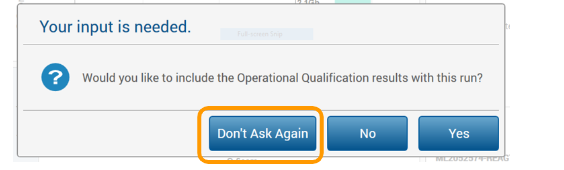
“Analyzing” in BSSH. Select Don’t Ask Again to keep this prompt from reappearing.
Networking considerations
Setting the output folder to a network location has special considerations due to Windows 10 authentication requirements. To configure the network properly, work with your IT team and follow the instructions in the bulletin, How to connect benchtop instruments and Local Run Manager to a network location.
Duplicate run folders
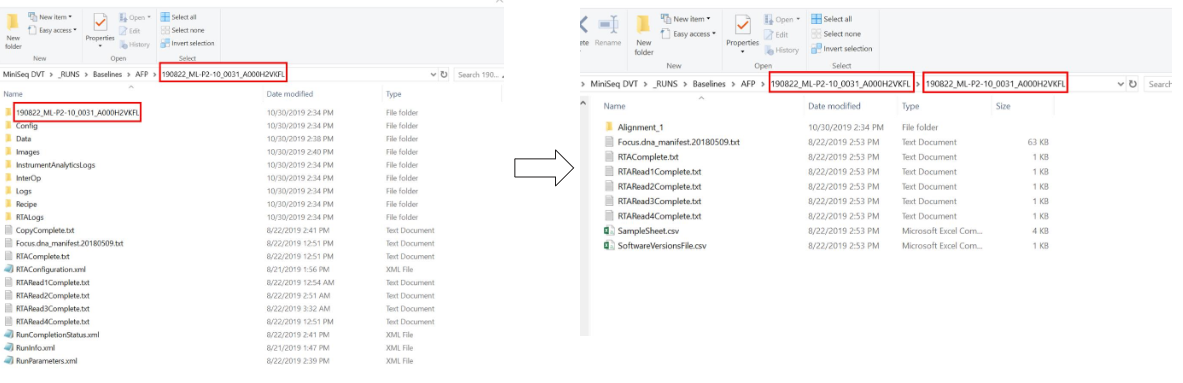
Occasionally, LRM may create a duplicate run folder with a second set of analysis files. Monitor hard drive space and delete these extra run folders if needed.
Resources: